Quick guide for
new users
Everything you need to know to get started with the new SmartDok app.
Download and log in
Searh for SmartDok in App Store (iPhone) or Google Play (Android).
Country: Norway
User type: SmartDok
Use the username and password sent via SMS.
Tap on Forgot Password on the login page and follow the instructions via SMS.
FAQ
What is the new app and why is it being launched?
The new SmartDok app is built from the ground up on a new technical platform to provide better performance, increased stability and a more modern design, and it replaces our old app. The new platform enables us to develop and deliver new features faster going forward, while also making the app better equipped for future needs.
When will the transition happen, when will the old app disappear?
- It is possible to use both the new and old apps in parallel.
- The old app will be phased out over time, and it is recommended to start the transition now. The date will be set one month before it is removed, and information will be sent to all customers at that time, to give time to those who have not yet switched.
- Users will receive a message in the old app encouraging them to switch to the new app.
- The goal is to remove the old app from the App Store and Google Play in the first quarter. We will also block the use of the old app after the first quarter of 2026. The blocking is done by users seeing a pop-up in the old app that cannot be closed.
The app is not working properly
1. Restart the app.
2. Make sure you have the latest version.
3. Check your internet connection.
4. Contact support if the problem persists.For more information, visit our support portal here.
Customize the home page
1. Go to the home page (Dashboard)
2. Tap «Shortcut Settings»
3. Tap «Add or Remove Shortcuts»
4. Select the features you use most
5. Tap Add followed by Save
1. Go to the front page (Dashboard)
2. Go to the bottom of the page and press Edit dashboard
3. Press Add widgets, move existing ones around or remove them
5. Change to the desired order and then press Save
Now you have quick access to your most important functions directly from the homepage.
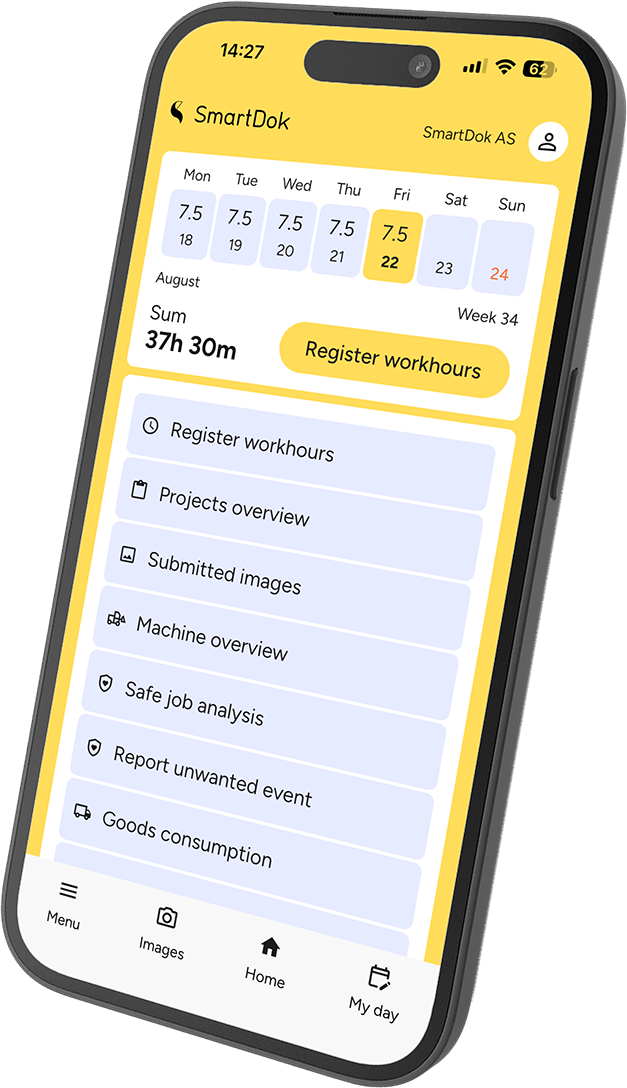
Register workhours
1. Go to Menu → Hours → Register hours
2. Select Hours or absence
3. Fill in date, working hours, break, project, machine, activity and salary type
4. Press Save
1. Go to My Day (calendar icon at the bottom)
2. Press the yellow + button
3. Fill in and save
Smart feature: The app automatically suggests based on your last registration. You can also copy the previous registration via My Day.
Contact your administrator. This is a setting that can be changed. Read the help article here.
Go to Menu → Hours → Hours Overview
1. Go to Menu → Work Schedule
2. Select scheduled day
3. Press Use for time registration
4. The information will be filled in based on what is scheduled
5. Make any changes and press Save
Note: For this to be possible, the person must be scheduled via the Resource Planner.
Upload photos
1. Tap Photos (camera button at the bottom)
2. Take a photo or choose from gallery
3. Tap the yellow button
4. Select project and add a comment if necessary
5. Tap Save
Fill out forms
1. Go to Menu → HSE/KS → Fill out form
2. Select project (and any subprojects)
3. Select form from the list
4. Fill in information and add images if necessary
5. Press Send
Change notifications and additional work
1. Go to Menu → Change / Addition
2. Click on the + button
3. Select project and any subprojects
4. Select whether it is a change or addition work
5. Add details and press Save
6. Then see the status of the Change / Addition
Electronic crew lists
1. Go to Menu → Crew List
2. Select the project you want to register for
3. Tap Check in when you arrive
4. Tap Check out when you leave
Quick access: You can add the employee log as a widget on your homepage to check in or out directly from your dashboard.
1. Enable location services and notifications in your phone’s settings.
2. Go to Menu → Employee Log.
3. Select the project and tap Monitor this project.
Note: You will receive a reminder when you enter or leave the project area, but the actual check-in and check-out is done manually.
Other questions
The new app continues the SmartDok functionality that users already recognize, such as registration times, deviations, images and other documentation, etc.
You can register the same things in the new app as you could in the old one.
All historical data registered in the old app is also available in the new app.
Users can switch between the new and old apps during the transition period.
Important to remember
The password is the same for web and app.
Enable push notifications in your phone settings to receive reminders
The app automatically suggests based on your registration history.